How to Search Channels on Yacine TV — Built-in Search Feature Explained
Yacine TV has a built-in search feature that locates channels instantly by name, sport, or category. This guide explains the 4 main methods to search and browse channels on Yacine TV — including the search icon location, category navigation, live sports discovery, and device-specific instructions for Android phones, Smart TVs, and Firestick. To get started, ensure the app is installed by visiting the Yacine TV APK download page.
What Is Yacine TV and How Does Channel Search Work?
Yacine TV is a free Android streaming application that delivers live TV channels — including sports, news, entertainment, kids content, and regional broadcasts — without requiring a subscription or account registration. Channel discovery operates through 2 primary methods: the built-in search bar and category-based browsing tabs. For a full overview, refer to the Yacine TV official guide.
The search bar processes exact-name and partial-name queries and returns matching channel results in real time. Category tabs organize channels into predefined groups, enabling users to browse without entering text. Both methods are available from the app’s main interface and function without logging in.
How Channels Are Organized in Yacine TV
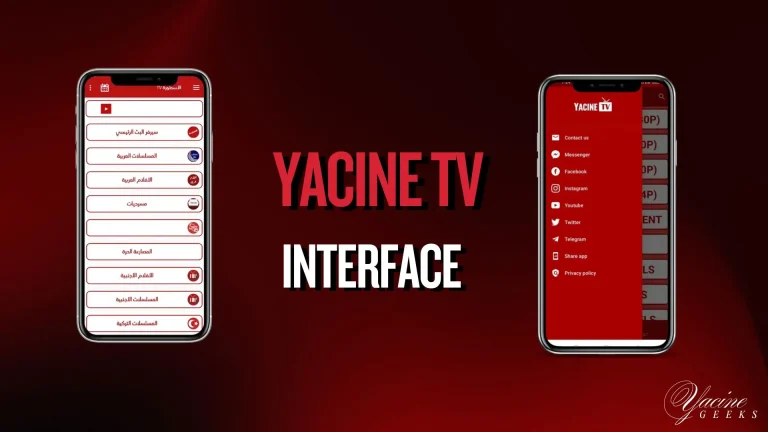
Yacine TV organizes channels into 5 main categories: sports, entertainment, kids, news, and regional broadcasts.
- Sports: Live football, basketball, tennis, and Formula 1 coverage — including BeIN Sports, Eurosport, and SSC channels
- Entertainment: General-interest channels from North Africa, the Middle East, and Europe
- Kids: Animated and educational channels, including MBC3 and Cartoon Network Arabic
- News: International and regional broadcasts, including Al Jazeera and France 24
- Regional: Country-specific channels grouped by geography and language
Each sports channel also appears inside the Teams and Matches tabs, which group live streams by the competing teams rather than the broadcasting network. To adjust language preferences, see the guide on how to change language in Yacine TV.
Search vs. Browsing Categories
Search is faster when the channel name is known; category browsing is more effective when exploring available options without a specific channel in mind.
| Method | Best Use Case | Speed |
|---|---|---|
| Built-in Search Bar | Finding a specific channel by name | Fastest (2–4 sec) |
| Category Tabs | Exploring channels by content type | Moderate |
| Sports Tab | Finding live match broadcasts | Fast for live events |
| Teams Section | Locating a match by team name | Fast during match hours |
How to Search Channels on Yacine TV
Searching channels on Yacine TV requires 4 steps: opening the app, tapping the search icon, entering the channel name, and selecting the result from the list.
Partial-name searches return all matching channels. Typing “SSC” returns SSC 1, SSC 2, SSC 3, SSC 4, and SSC Extra simultaneously. The search function requires an active internet connection for live stream playback.
Where to Find the Search Icon
The search icon appears as a magnifying glass in the top-right corner of the Yacine TV home screen, visible immediately after launching the app. On older app versions, the icon appears in the top navigation bar alongside the categories menu. If the icon is not visible, the app version requires an update. Download the latest version from the Yacine TV APK download page.
How to Search Channels by Name
Yacine TV supports exact-name and partial-name channel searches, returning results as characters are typed. 3 common search behaviors to know:
- Exact names like “Al Jazeera English” return a single result instantly.
- Partial names like “Bein” return all BeIN Sports channels, including BeIN Sports 1 through 7 and HD variants.
- Misspelled queries return no results — correct spelling is required for accurate results.
Using Categories to Find Channels Faster
Category tabs find channels faster than search when the exact channel name is unknown. The Sports tab lists all available sports channels — including BeIN Sports, Eurosport, SSC, and OSN Sports — without requiring text input. To navigate by category:
- Tap the category icon or menu on the home screen.
- Select Sports, Entertainment, Kids, News, or Regional.
- Scroll through the channel list or tap a subcategory to filter further.
How to Find Sports and Live Football Channels Quickly
Yacine TV provides 3 dedicated methods for finding live football channels: the Sports tab, the Teams section, and the Matches tab — each designed to locate broadcast streams within 10 seconds during live events. For live score tracking, visit the live football scores page.
Using the Sports and Teams Sections
The Sports tab organizes all live sports channels by broadcast network, while the Teams section organizes the same content by competing clubs or national teams. Searching for “Real Madrid” in the Teams section returns all channels currently broadcasting that match — including BeIN Sports 1, Eurosport 1, and regional equivalents.
Finding Live Match Channels
The Matches tab displays all live and scheduled football matches organized chronologically by kick-off time, with broadcasting channels listed beneath each fixture. Tapping any match opens the available broadcast streams directly, reducing channel-finding time to under 5 seconds for any active live match.
Tips for Faster Sports Channel Navigation
4 tips accelerate sports channel navigation during live events in Yacine TV:
Save BeIN Sports 1, SSC 1, and Eurosport 1 to Favorites for single-tap access during peak match hours.
Use the Matches tab instead of the Sports tab when 2 or more matches broadcast simultaneously.
Type the team name in the Teams section to find broadcast channels faster than scrolling the full Sports list.
Switch to BeIN Sports HD 2 or Al Kass Sport 1 if the primary stream buffers during live events.
How to Search Channels on Different Devices
Channel search on Yacine TV operates differently across 3 device types: Android phones with touchscreens, Android TV and Smart TVs with remote controls, and Amazon Firestick devices. Each interface presents the search icon in the same home-screen position but requires different input methods.
Android Phone
Touchscreen input. On-screen keyboard appears instantly. Fastest input method available.
Touchscreen SearchAndroid TV / Smart TV
D-pad remote navigation. Category browsing is more efficient than text search on large screens.
Remote NavigationFirestick
Physical remote D-pad. Use Matches tab to avoid letter-by-letter text entry entirely.
D-pad + Matches TabAndroid phones provide the fastest search experience through direct touchscreen input. Android users running version 5.0 (Lollipop) or higher access all search and browse features. For installation instructions, visit the Yacine TV APK download page.
Android TV and Smart TV navigation requires directional remote control input, which slows text entry. Category browsing is more efficient on large-screen devices. Smart TV setup instructions appear on the Yacine TV Smart TV guide.
Firestick users navigate channel search using the physical remote’s directional pad. The Sports and Matches tabs eliminate text input entirely for live sports discovery, reducing navigation to under 15 seconds per match search. For alternative streaming apps, see Yacine TV alternatives.
Common Yacine TV Search Problems and How to Fix Them
Yacine TV search fails for 4 main reasons: an outdated app version, corrupted cache data, server overload during peak broadcast hours, and unstable internet connections.
Search Feature Not Working
A non-responsive search bar indicates an outdated app version or corrupted cache. Fix: Clear app cache (Settings → Apps → Yacine TV → Storage → Clear Cache), force-close the app, then reinstall the latest APK from the Yacine TV APK download page.
Missing Channels or No Search Results
Missing results occur when channels are temporarily removed from the server or when the local channel list is outdated. Pull down on the home screen to trigger a list refresh, or close and reopen the app. For alternatives, see Yacine TV alternatives.
Slow Loading or App Freezing Issues
Slow channel loading results from internet speeds below 5 Mbps, accumulated cache over 500 MB, or server overload during peak match hours. Fix: Test speed via Fast.com, clear the app cache, and switch to Wi-Fi during broadcasts.
Updating Yacine TV to Restore Search Features
Updating Yacine TV restores missing search features and resolves interface bugs. Install the newest APK from the Yacine TV APK download page. The Yacine TV Black APK provides an alternative interface optimized for larger screens.
Tips to Make Channel Browsing Easier on Yacine TV
4 practical methods reduce channel navigation time and improve the browsing experience on Yacine TV across all devices.
Using Favorites for Quick Access
The Favorites feature stores frequently watched channels in a dedicated list accessible from the main screen, reducing navigation to a single tap. To add a channel to Favorites, long-press the channel name in the search results or category list and select “Add to Favorites.” Sports viewers benefit from adding BeIN Sports 1, BeIN Sports 2, SSC 1, and Eurosport 1 to Favorites before match days.
Best Ways to Browse Live Channels Faster
3 browsing shortcuts reduce channel discovery time to under 10 seconds on Yacine TV:
- Open the Matches tab during live sports events to access all active broadcast channels without the search bar.
- Use the Teams section to find a match by club name — Barcelona, PSG, or Liverpool — rather than searching for the broadcaster.
- Sort the Sports category by “Live” to display only currently active streams, filtering out offline channels.
Simple Navigation Tips for Beginners
Beginners navigate Yacine TV most effectively by learning the 3 main screen areas: the search icon (top-right), the category tabs (horizontal bar below the header), and the Favorites list (bottom navigation bar). These 3 areas cover 95% of all channel-finding tasks. New users benefit from reviewing the complete Yacine TV guide on the homepage before exploring advanced navigation features.
Frequently Asked Questions About Searching Channels on Yacine TV
Yacine TV supports category-based browsing for language groups, including Arabic, French, English, and Tamazight channels, accessible through the Regional or Entertainment tabs. Direct language-filter search is not available; users browse language-specific channels through category tabs. For complete language customization, see the guide on how to change language in Yacine TV.
Channels disappear from Yacine TV search results for 3 reasons: temporary server removal due to broadcasting rights changes, app version incompatibility with the current channel list, and regional geo-restrictions. Refreshing the app or updating to the latest APK resolves most missing-channel issues. Channels removed permanently due to rights restrictions do not return after updates.
Yacine TV provides the same channel library on all devices but differs in navigation method. Android phones offer touchscreen search and instant keyboard input. Android TV and Smart TVs require D-pad remote navigation. iPhone and iOS users access Yacine TV through alternative methods detailed on the Yacine TV for iPhone page.
The Yacine TV search feature is completely free, requires no account registration, and carries no subscription fee. All 4 discovery methods — search bar, category tabs, Sports tab, and Matches tab — are accessible to all users at no cost. Full details and the free download link appear on the Yacine TV APK download page.
Final Thoughts on Finding Channels Quickly in Yacine TV
Yacine TV provides 4 effective methods for channel discovery: the built-in search bar for name-based queries, category tabs for content-type browsing, the Sports tab for live sports channels, and the Matches and Teams sections for live football broadcast discovery. Each method suits a specific use case; combining search with category navigation delivers the fastest results across all device types.
Keeping the app updated prevents search failures and ensures access to the full channel list. Users experiencing persistent search issues resolve them by clearing the app cache or installing the latest APK from the Yacine TV APK download page. For sports viewers, saving key channels to Favorites and using the Matches tab reduces live match navigation time to under 5 seconds. Explore the complete feature overview on the Yacine TV homepage.